

-
About
Self-Service Password Reset (SSPR) is a web-based application that allows UTHealth students, faculty, and staff to change their current password or recover a forgotten password. A password can be recovered either through a personal email account or mobile phone if it has been enrolled through SSPR. For more information about SSPR, explore the tabs above.
SSPR Features
- Offers more protection against cybersecurity threats
- Password recovery through email or mobile phone
- Longer password lifespan: Keep the same password for up to one year if the new password contains 15 characters or more. Previously, all passwords expired after six months, regardless of length.
- New design: A modern, more user-friendly interface.
- Stronger security: All new passwords will be compared to a list of known compromised passwords to ensure university accounts are secure
To continue to the SSPR Page
-
Password Recovery
Follow these steps to recover your password:
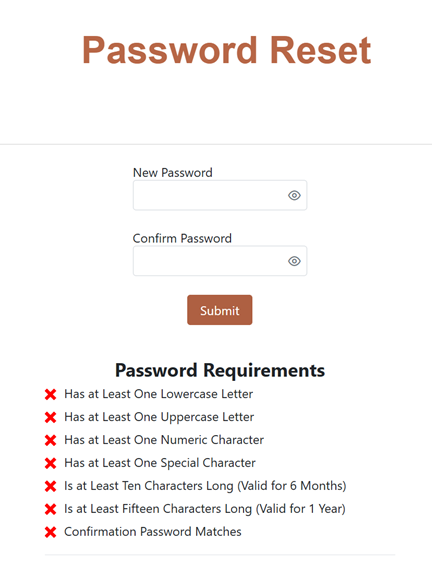
Click the above 'Recover Password Now' button. Once on the Password Reset page, select either Password Reset or Password Recovery.
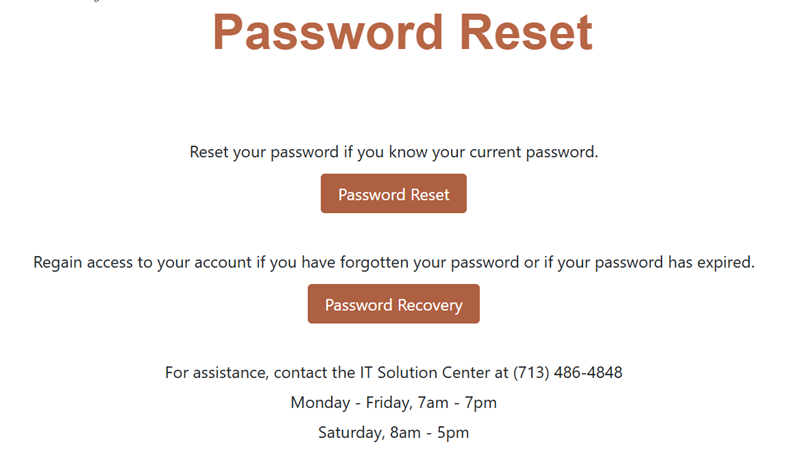
If selecting Password Reset:
1. Sign in with your UTHH credentials:
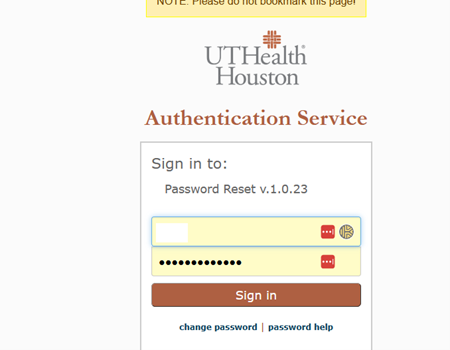
2. Check for Duo push on your mobile device:

3. Follow the prompts to reset your password:
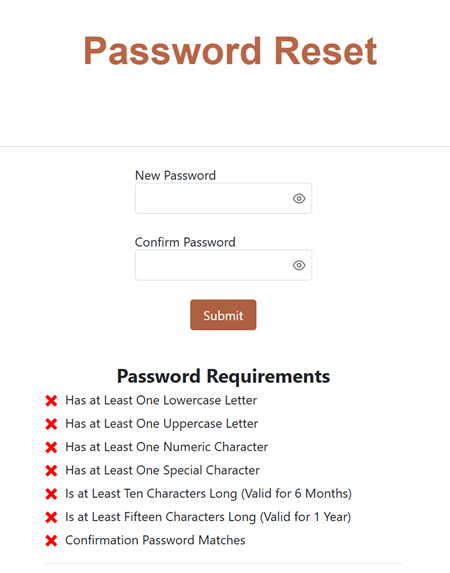
If selecting Password Recovery:
1. Follow the prompts, then enter the One-Time Code that was sent to your recovery address:
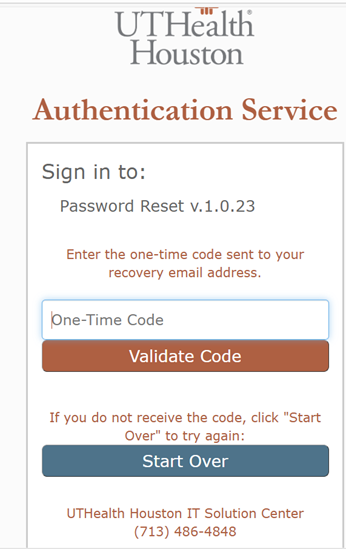
2. Verify Duo Push:

3. Follow the prompts to reset your password:
-
Help
Help
SSPR support questions can be directed to either your departmental IT support person, or the IT Solution Center at 713-486-4848.
UTHealth IT Solution Center standard hours of operation:
- Monday through Friday, 7 a.m. to 7 p.m.
- Saturday, 8 a.m. to 5 p.m.
-
Schools
The Seven Schools of UTHealth HoustonExplore our schools.
-
Students
Current StudentsFuture Students
-
Patients
Patient CarePatient care for all your needs.UT Physicians
The clinical practice of McGovern Medical School at UTHealth Houston
School of DentistryThe clinical practice of UTHealth Houston School of Dentistry
UT Health ServicesThe clinical practice of Cizik School of Nursing at UTHealth Houston
-
Research
Research at UTHealth HoustonResearch Offices
-
Give
Philanthropy at UTHealth HoustonHelp improve the health of our communities.