

Welcome to UTHealth Houston!
The Office of International Affairs (OIA) has a check-in process for F-1 International Students. This includes the New F-1 Student Orientation course, which is 100% online.
As an incoming F-1 student, you are required to check-in with your sponsoring institution (UTHealth Houston). This allows us to report your arrival in the Student Exchange Visitor Information System (SEVIS) and maintain your valid F-1 status in the United States. Failure to complete the check-in requirements with OIA could result in the loss of your valid F-1 status. If you have a registration hold in your myUTH account called “Intl. Affairs” hold, completing the F-1 International Student Check-In process and submitting the required check-in documents will allow OIA to remove that hold. If you will also be working on-campus (e.g., Graduate Assistantship position), you are also required to complete all check-in requirements with OIA prior to your first day of employment.
- How to Complete F-1 Check-In?
- When can I complete the F-1 Check-In?
- Can I complete the Check-In from my phone?
- I am having issues completing Check-In. What do I do?
How can I complete my check-in requirements?
Device Requirements
*This online check-in course must be taken on a desktop computer. Mobile devices are not permitted.
Follow the steps below to complete the check-in process and have your “Intl. Affairs” hold removed from your account:
- Arrive in the United States in valid F-1 status. Students who have transferred their SEVIS record to UTHealth Houston who are already in the United States are eligible to complete their check-in.
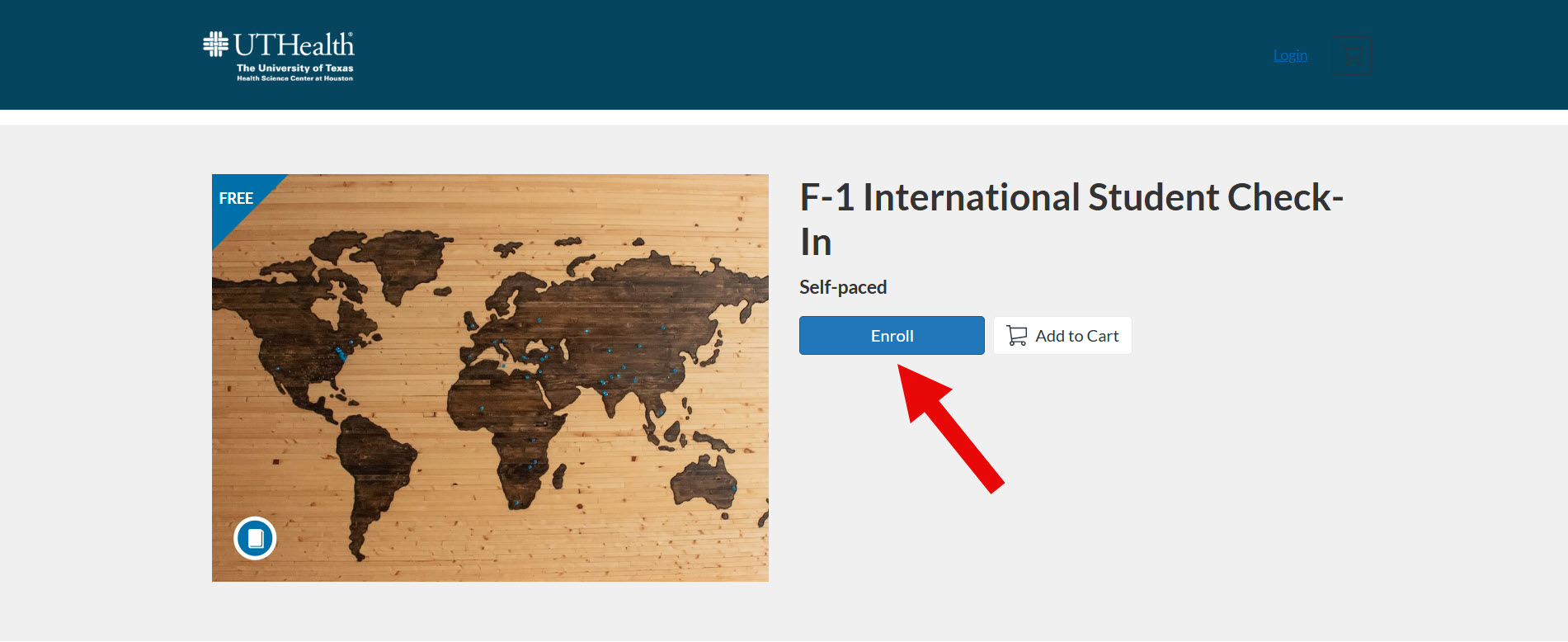
- Enroll in the F-1 International Student Check-In course via the Canvas online platform: https://uthealth.catalog.instructure.com/courses/f-1-international-student-check-in
- The link will direct you to this page, where you will click the “Enroll” button.
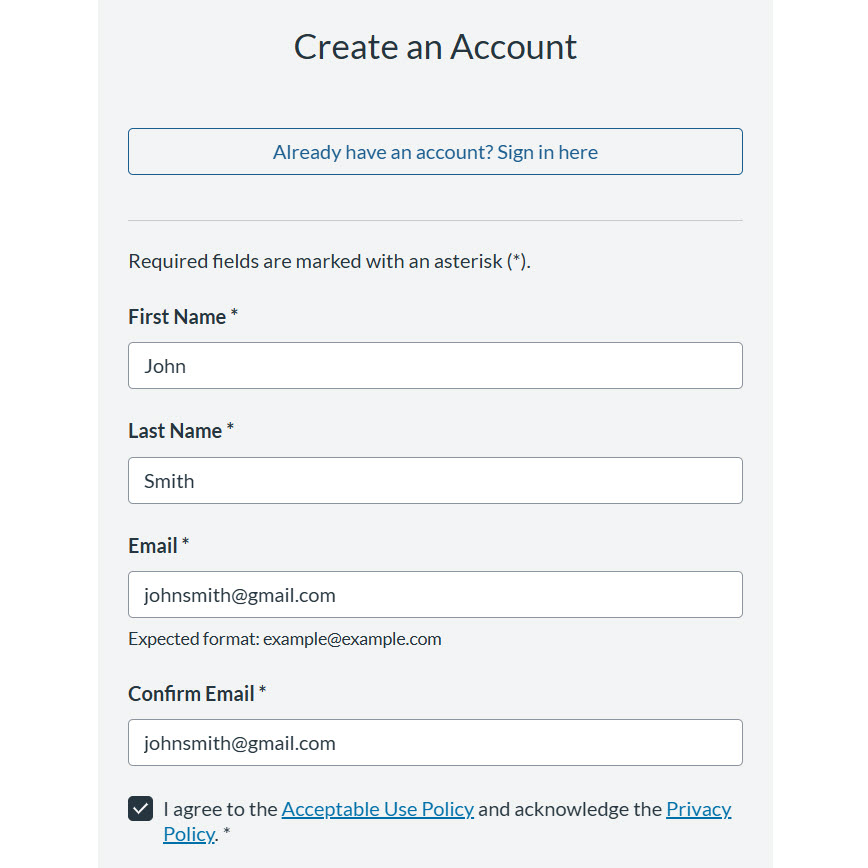
- Next, you will create an account and fill in the required information. Make sure to use your name as it appears on your passport where it asks for your “First Name” and “Last Name.” You will use your personal email address to sign up (NOT your UTHealth email address, if you have already received one).
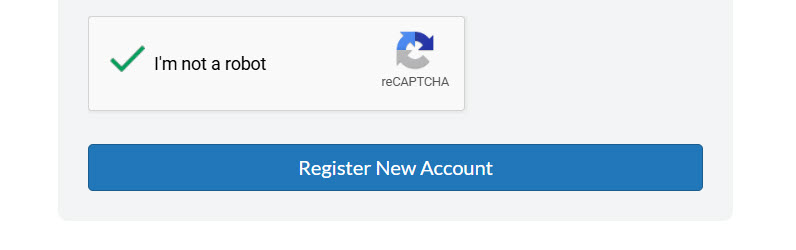
- Once you have completely filled out the information above, checked the box “I agree to the Acceptable Use Policy and acknowledge the Privacy Policy,” and successfully checked the box “I’m not a robot,” you may now click the “Register New Account” button at the bottom.
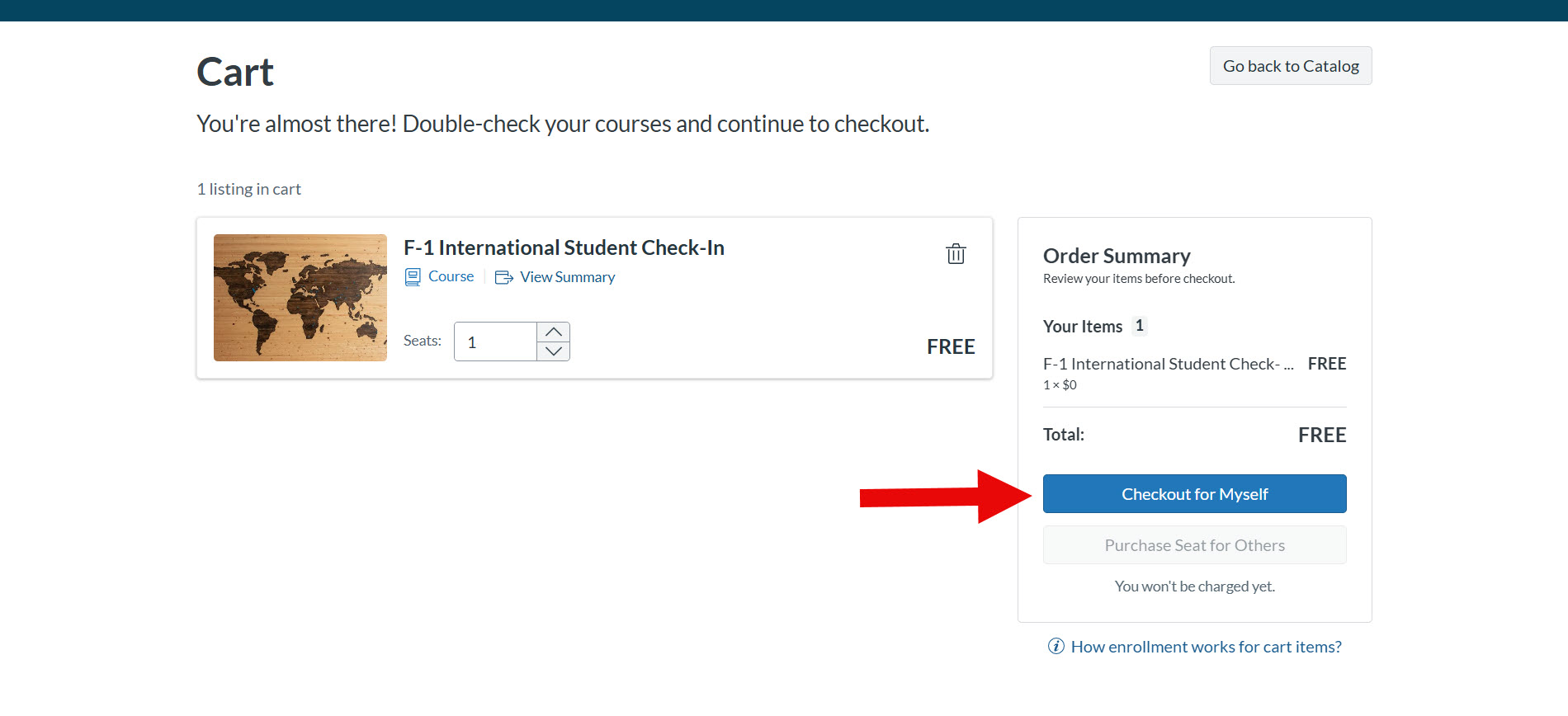
- You will now see the “F-1 International Student Check-In” course added to your cart. Click “Checkout for Myself” to continue to the Checkout page.
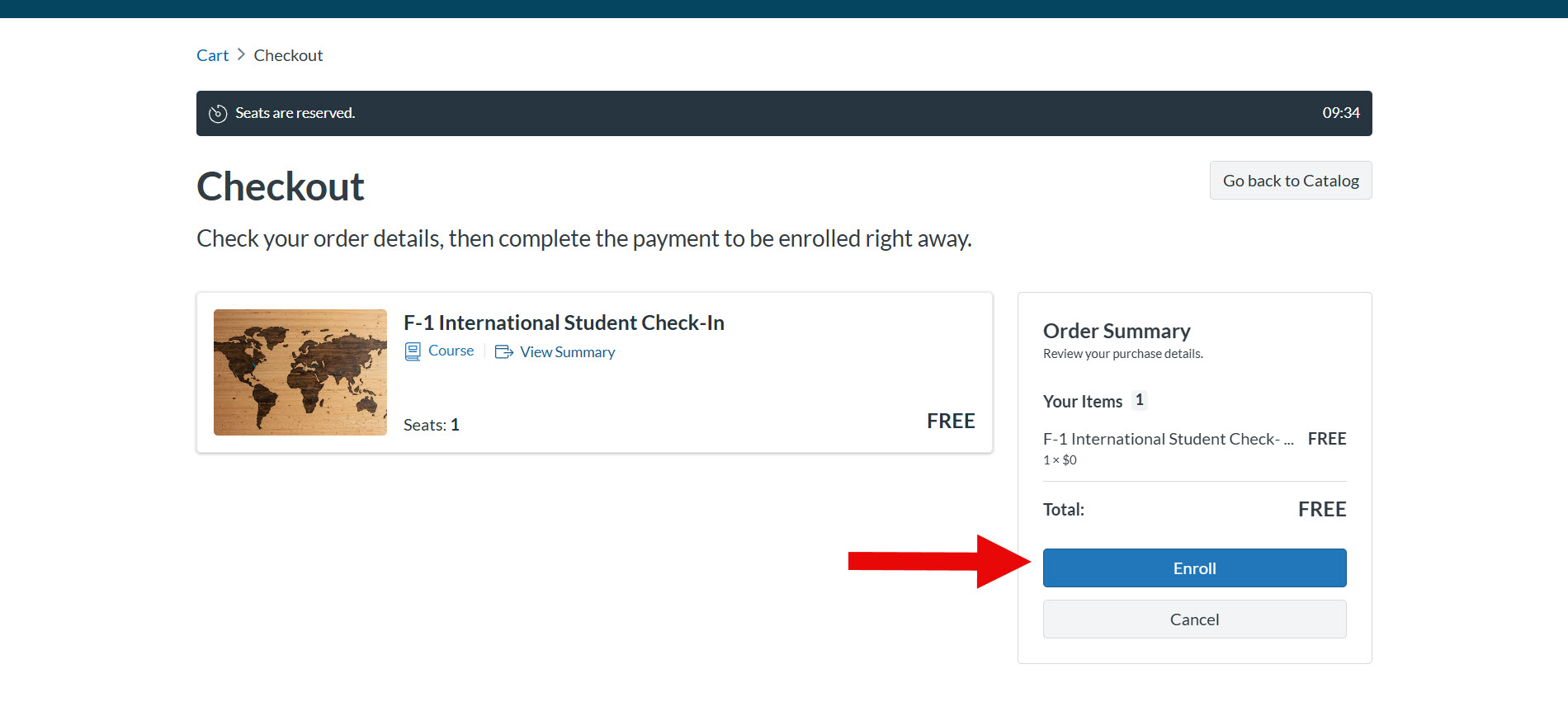
- At the Checkout page, you will click “Enroll” to finish enrolling in the F-1 International Student Check-In course. Please note, the course is free and it will not ask you for any payment information.
-
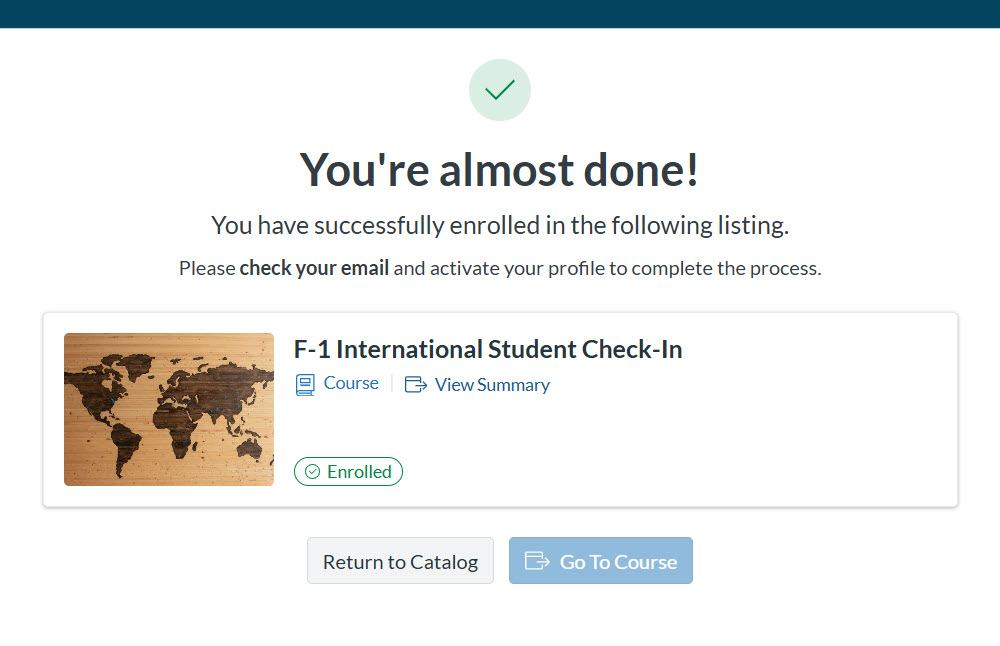
- After successfully enrolling, the page will ask you to “check your email and active your profile to complete the process.” You will need to check the email address that you signed up with and look for an email titled “Welcome to Catalog.” Click the “Complete Registration” button in the email.
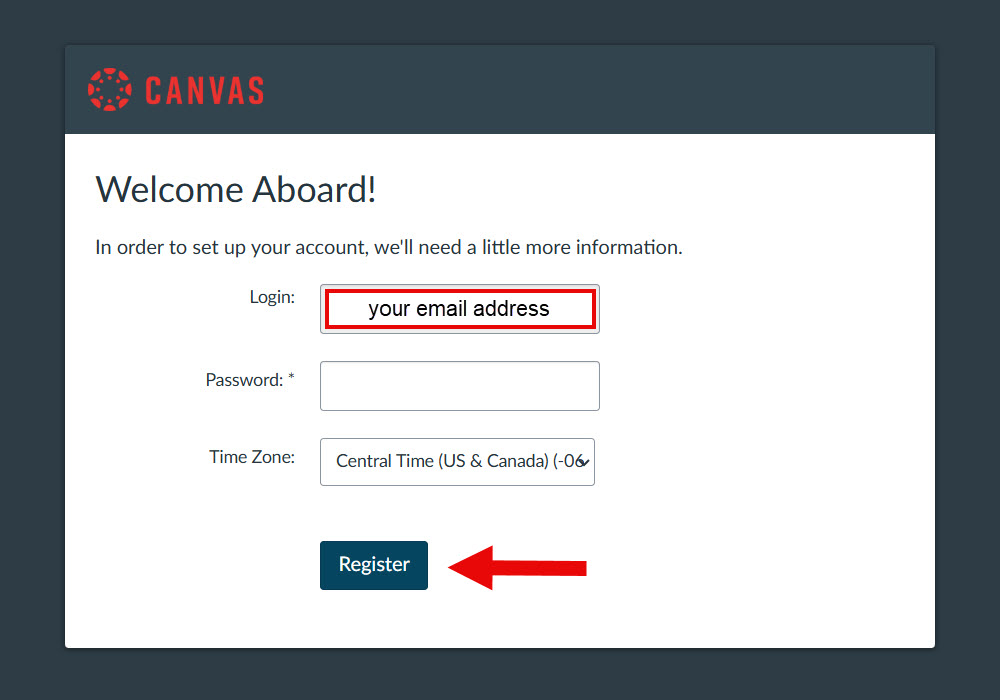
- You will be taken to the page below where you should see your email address as your “Login.” Create a password for your account and then click “Register.” Please write down your login and password in case you need to come back to finish your Check-In later.
-
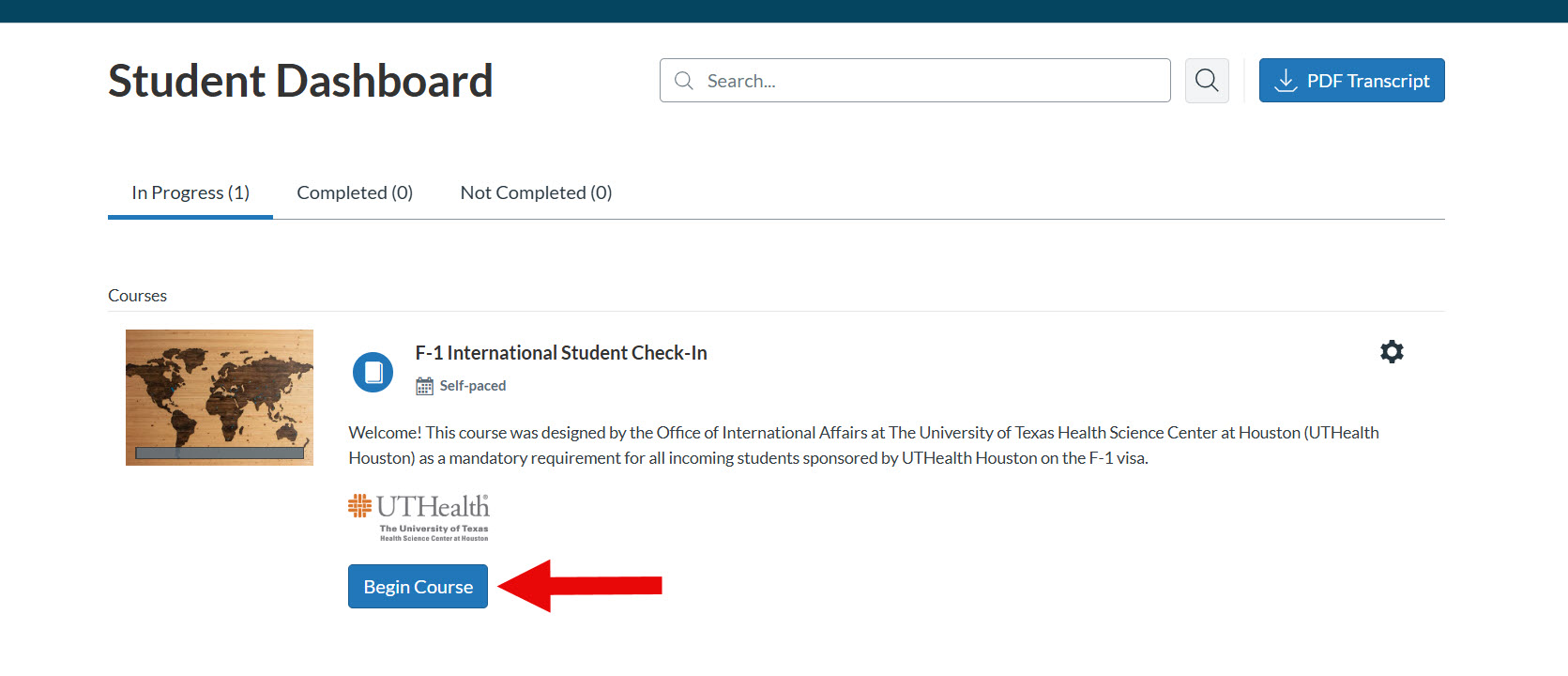
- After successfully registering your new account, you will be taken to your Student Dashboard where you will see the F-1 International Student Check-In course. Click the “Begin Course” button underneath the course listing.
- You should now see the Canvas course. There are four steps in total, with Step 4 being the actual submission of check-in documents. You must complete Steps 1-3 – which includes viewing the presentation, taking and passing the quiz with a 100% score, and correctly answering the Check-In Eligibility questions – before you can access Step 4 and submit your check-in documents.
- When you reach Step 4, click the link that says “CLICK HERE TO SUBMIT YOUR CHECK-IN.” You will be taken to a separate website to review the instructions, upload the required documents, and sign the forms to complete your check-in process with OIA. Your submission will be automatically sent to our office and reviewed by an OIA advisor. If your documents are complete, we will email you confirming that you have completed your check-in requirement and your “Intl. Affairs” hold will be removed.
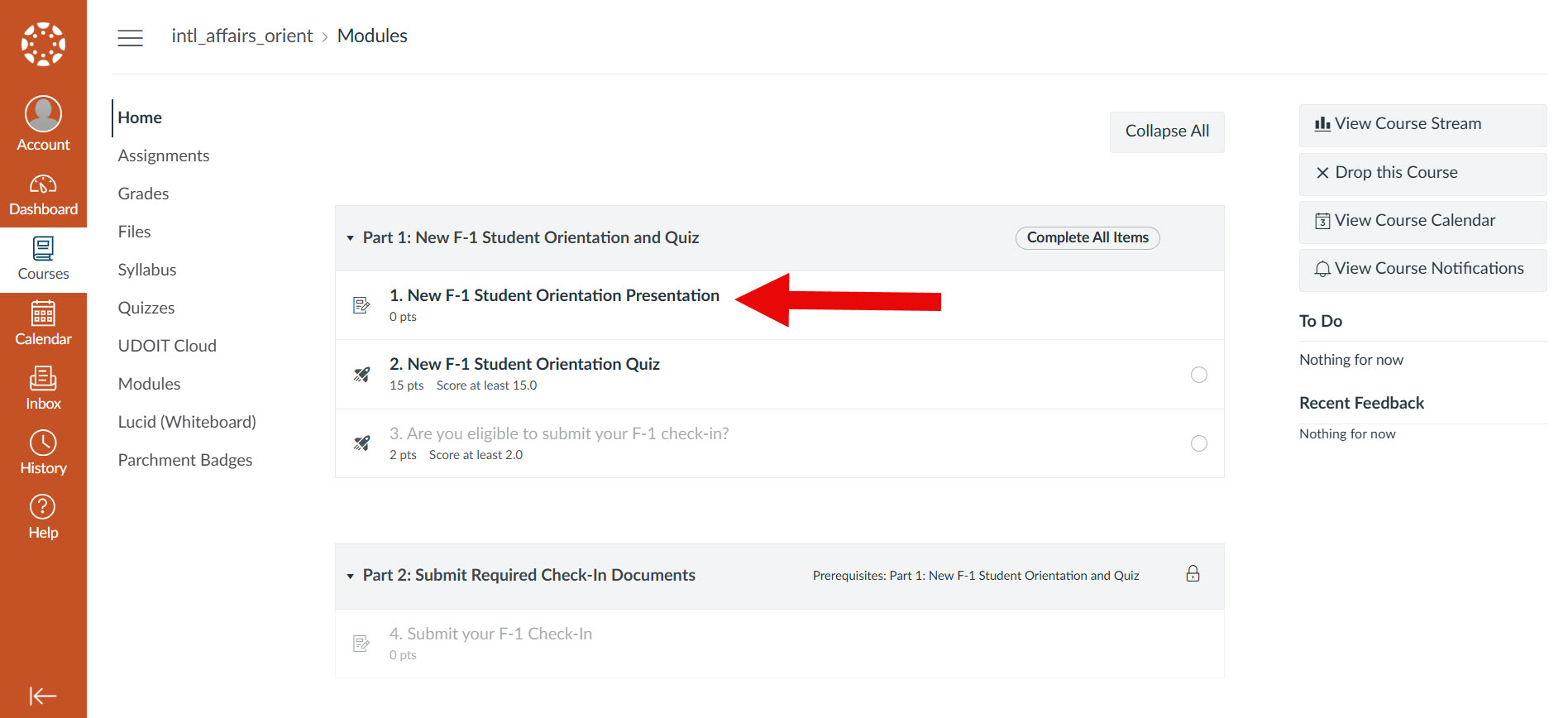
When can I complete the F-1 Check-In?
*You may be able to access the Canvas course while outside of the United States and complete Steps 1 and 2. However, until you can correctly answer the Check-In Eligibility questions in Step 3, you will NOT be able to complete Step 4 and submit the check-in documents to OIA.
Failure to complete the New F-1 Student Orientation course and submit the required check-in documents will result in a delay in removing your “Intl. Affairs” registration hold, the ability to register for classes, and the required clearance to begin your on-campus appointment (such as a GRA), if applicable. Your attention to this matter is required and appreciated.
Important Timing Note
***If for any reason you are unable to enter the U.S. by the program start date indicated on your Form I-20, you must notify OIA so that we may take appropriate action. Failure to notify us in a timely manner could result in your Form I-20 becoming invalid.
Issues and After-Hours Support
If for some reason you are detained or delayed at the U.S. Port of Entry and it is after business hours or on weekends, please contact the Office of International Affairs Emergency Line at 713-500-3085.
We look forward to your arrival and hope that you will enjoy your stay here. If you encounter any issues with the check-in process, please send an email to [email protected] with the subject line “Canvas Orientation Issues” and include a screenshot of the error you are receiving. Should you have any general questions regarding the Canvas course, please do not hesitate to contact our office at [email protected].